A Chrome browser extension that allows you to select and hide any element on web pages. Hidden elements persist across visits to the same website. Make web less bloated for you.
Changelog
2025-11-14
- Release
2025-11-15 (v1.1.2)
- FEATURE: Hide images with hover unlock
2026-07-10 (v1.1.3)
- Tab Limit: Added configurable tab limit setting (0 = unlimited). Pinned tabs are excluded from the count.
- When the limit is reached, new tabs are automatically prevented from opening (closed immediately).
- The last unpinned tab is highlighted with a yellow tab group labeled “LIMIT” to indicate the boundary.
- Setting is accessible from the popup UI and persists via Chrome sync storage.
Features
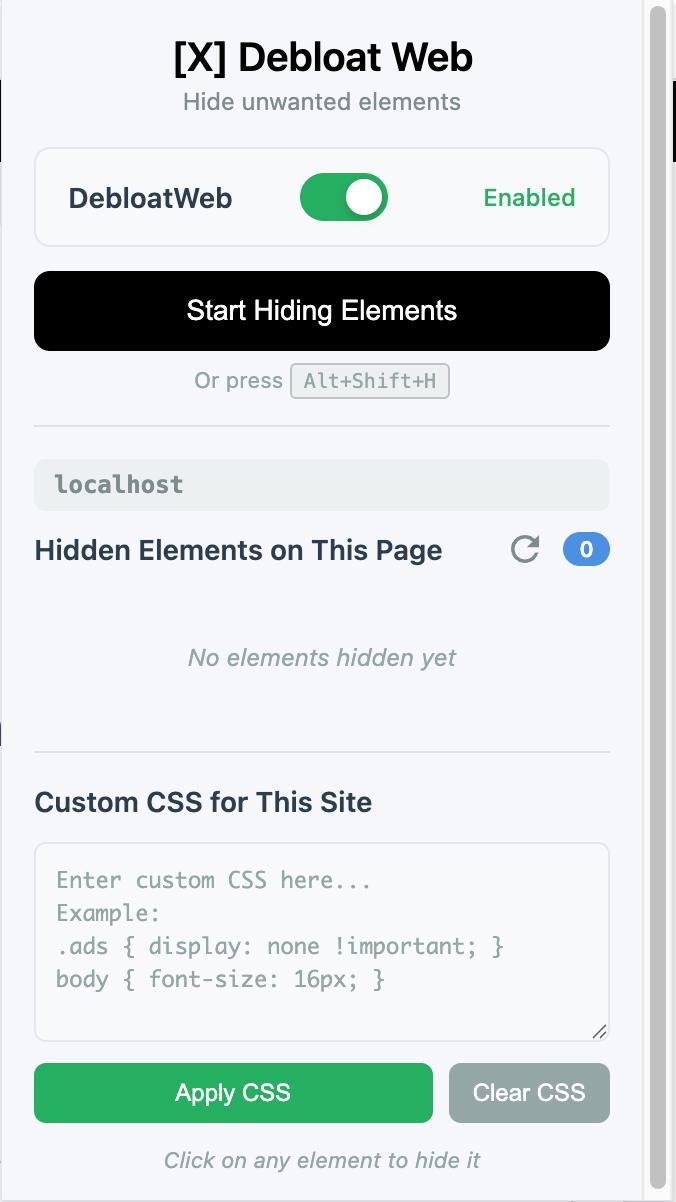
- Master Toggle: Enable or disable all DebloatWeb features for a site with one click
- Hide Images Mode: Hide all images and reveal them only on hover - perfect for reducing clutter
- Click to Hide: Select any element on a page and hide it with a single click
- Persistent Storage: Hidden elements remain hidden when you reload or revisit the page
- Editable Selectors: Click on any CSS selector to edit it in place for fine-tuning
- Custom CSS Editor: Write and apply custom CSS styles per website with a built-in textarea
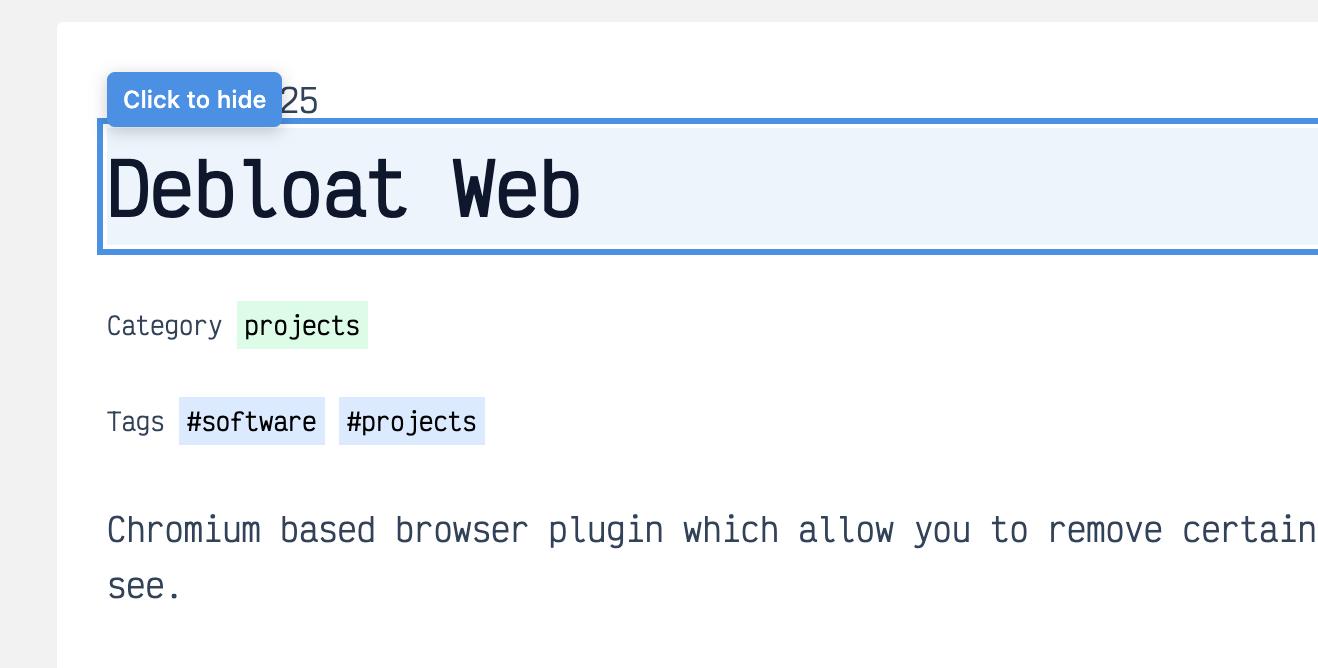
- Visual Feedback: Hovering over elements shows a highlight and tooltip
- Easy Management: View and manage all hidden elements through the popup interface
- Unhide Elements: Restore individual elements or clear all hidden elements at once
- Keyboard Shortcut: Press
Alt+Shift+Hto quickly toggle selection mode - Per-Website Storage: Hidden elements and custom CSS are stored separately for each domain
- Refresh Styles: Manually refresh and reapply all styles when needed
Installation
- Open Chrome and navigate to
chrome://extensions/ - Enable “Developer mode” using the toggle in the top-right corner
- Click “Load unpacked”
- Select the
./src/debloatwebdirectory - The extension should now appear in your extensions list
Usage
Enable/Disable DebloatWeb
At the top of the popup, you’ll find toggle switches for controlling DebloatWeb features:
DebloatWeb Toggle:
- Enabled (green toggle): All hidden elements and custom CSS are applied
- Disabled (gray toggle): All hidden elements and custom CSS are removed, but settings are preserved
- This allows you to quickly see the original page without losing your configuration
Hide Images Toggle:
- On (green toggle): All images on the page are hidden by default
- Images become visible when you hover over them
- Useful for reducing visual clutter and saving bandwidth
- Off (gray toggle): All images are visible normally
- Settings persist per domain
Hiding Elements
Method 1: Using the Extension Popup
- Click the DebloatWeb extension icon in your browser toolbar
- Click the “Start Hiding Elements” button
- Hover over any element on the page (it will be highlighted with a blue border)
- Click the element to hide it
- Press ESC or click “Stop Hiding Elements” to exit selection mode
Method 2: Using the Keyboard Shortcut
- Press
Alt+Shift+Hto enter selection mode - Hover and click elements to hide them
- Press ESC or
Alt+Shift+Hagain to exit
Managing Hidden Elements
- Click the DebloatWeb extension icon to open the popup
- You’ll see a list of all hidden elements on the current page
- Click “Unhide” next to any element to restore it
- Click “Clear All on This Page” to restore all hidden elements
Editing Selectors
- In the popup, click on any CSS selector to edit it
- Modify the selector text as needed
- Press Enter to save or ESC to cancel
- The selector will be validated and applied immediately
- Invalid selectors will be rejected with an error message
Refreshing Styles
- Click the refresh icon (🔄) next to the element count
- This will reapply all hidden element styles from storage
- Useful when page content changes dynamically or after editing selectors
- The button will animate to confirm the refresh
Custom CSS
- Scroll to the “Custom CSS for This Site” section in the popup
- Write any valid CSS in the textarea (e.g.,
.ads { display: none !important; }) - Click “Apply CSS” to inject the styles into the page
- Custom CSS is saved per domain and persists across visits
- Click “Clear CSS” to remove all custom styles for the current site
- The textarea supports standard CSS syntax with autocomplete disabled for better control
Visual Indicators
- Blue highlight: Appears when hovering over an element in selection mode
- “Click to hide” tooltip: Shows above the highlighted element
- Notification messages: Appear in the top-right corner when hiding/unhiding elements
- Crosshair cursor: Indicates selection mode is active
Technical Details
File Structure
debloatweb/
├── manifest.json       # Extension configuration
├── popup.html          # Extension popup interface
├── popup.css           # Popup styling
├── popup.js            # Popup functionality
├── content.js          # Page interaction script
├── background.js       # Background service worker
├── styles.css          # Injected page styles
├── icons/              # Extension icons
│   ├── icon16.png
│   ├── icon48.png
│   └── icon128.png
└── README.md          # This file
How It Works
- Content Script (
content.js): Runs on every page and handles element selection, highlighting, and hiding - Popup (
popup.html/js/css): Provides the user interface for managing hidden elements - Background Script (
background.js): Handles keyboard shortcuts and extension events - Storage: Uses Chrome’s
chrome.storage.syncAPI to persist hidden elements across devices - CSS Injection: Applies
display: none !importantto hidden elements via dynamically injected CSS rules
Selector Generation
The extension generates CSS selectors for elements in the following priority:
- ID selector (if element has an ID)
- Class selector (if unique)
- nth-child selector (for specific positioning)
- Tag name (fallback)
This ensures hidden elements can be reliably identified even after page reloads.
Limitations
- Some websites use dynamic content loading that may regenerate elements with different selectors
- Extremely dynamic sites (like single-page apps) may require re-hiding elements after navigation
- The extension respects Chrome’s storage limits (sync storage has a 100KB quota)
Privacy
- All data is stored locally in your Chrome browser
- No data is sent to external servers
- If using Chrome sync, your hidden elements list syncs across your Chrome browsers
Troubleshooting
Extension not working on a page:
- Refresh the page after installing the extension
- Some Chrome internal pages (like chrome://extensions) block content scripts
Hidden elements reappear:
- Check if the website uses dynamic content loading
- Try generating a more specific selector by re-hiding the element
Keyboard shortcut not working:
- Check Chrome’s extension shortcuts at
chrome://extensions/shortcuts - Ensure no other extension is using the same shortcut
License
This extension is provided as-is for personal use.
Screenshots